How to turn a Banana Pi (or Raspberry Pi) into a clock
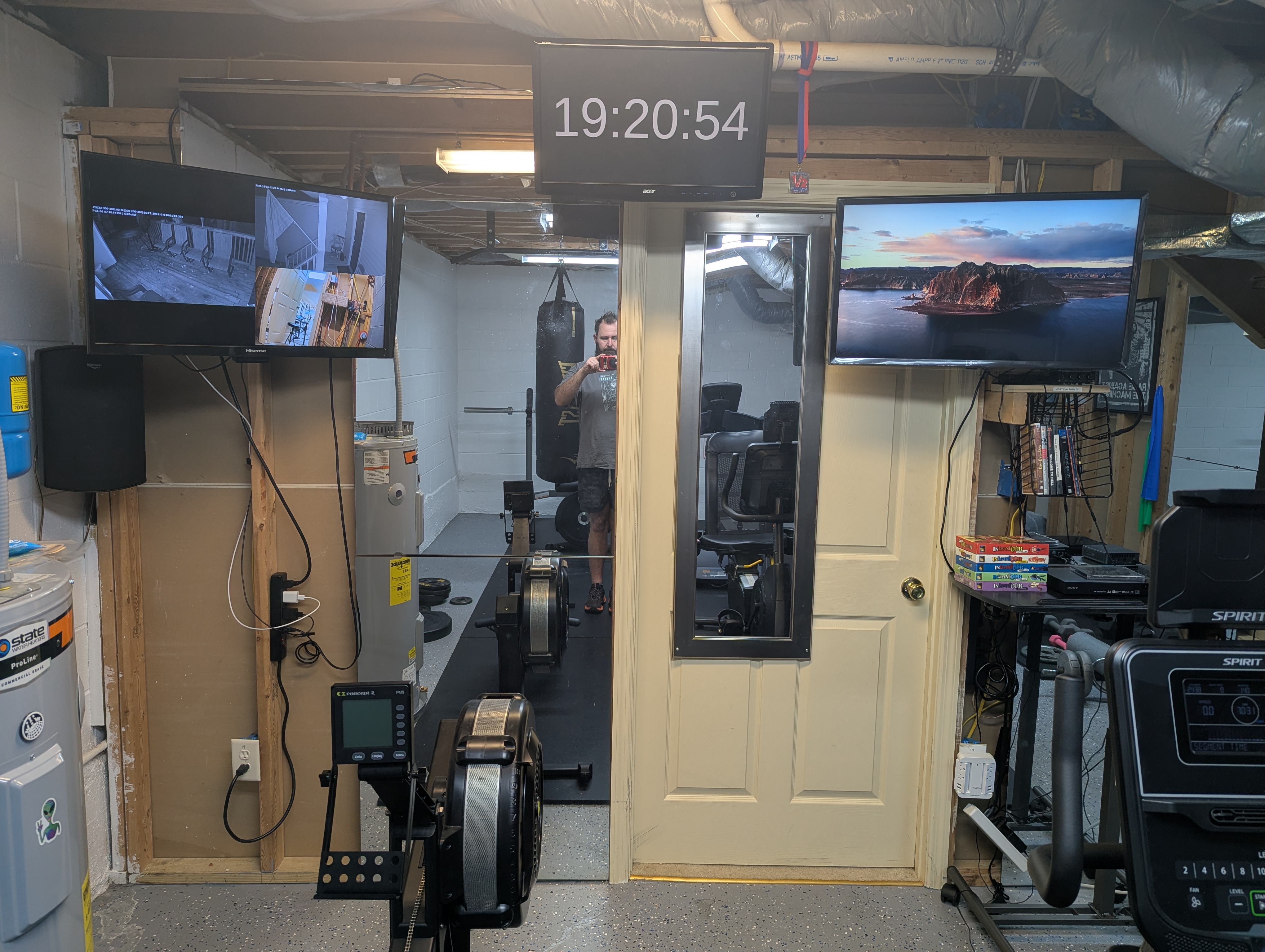
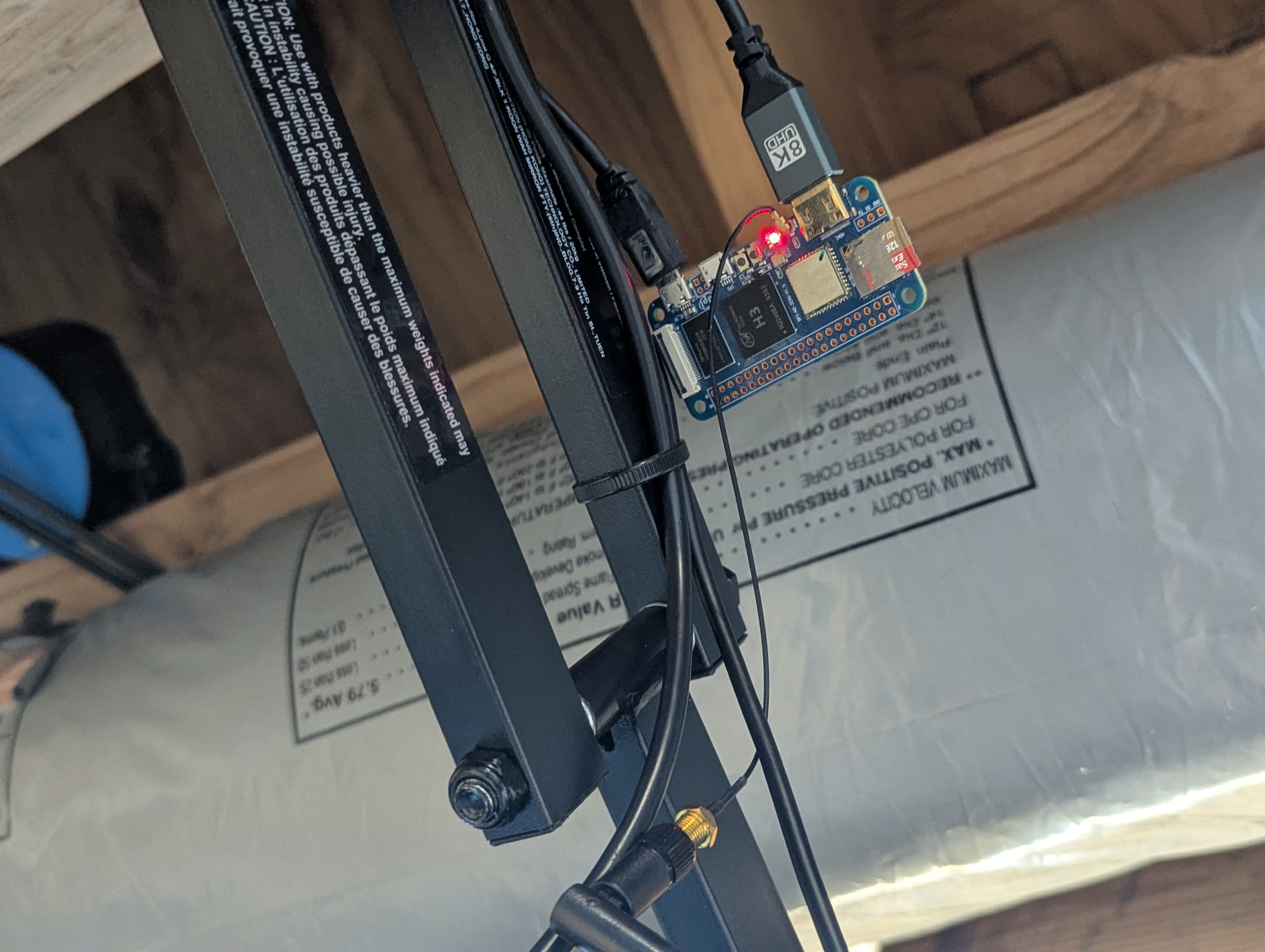
- Install NGINX. Copy HTML file for clock.
sudo apt install nginx
Create file /var/www/html/index.html:
<!DOCTYPE html>
<html>
<head>
<title>Pi Time</title>
<style>
    body {
        margin: 0 auto;
        font-family: Tahoma, Verdana, Arial, sans-serif;
        font-size: 300px;
        background-color: black;
        color: white;
        text-align: center;
    }
    #parent_container {
        position: relative;
        height: 100vh;
    }
    #clock {
        position: absolute;
        top: 50%;
        left: 50%;
        transform: translate(-50%, -50%);
    }
</style>
<script type="text/javascript">

function updateClock() {
    const now = new Date();
    let hours = now.getHours();
    let minutes = now.getMinutes();
    let seconds = now.getSeconds();

    hours = hours.toString().padStart(2, '0');
    minutes = minutes.toString().padStart(2, '0');
    seconds = seconds.toString().padStart(2, '0');

    const timeString = `${hours}:${minutes}:${seconds}`;
    document.getElementById('clock').textContent = timeString;
}

function init() {}
    updateClock();
    setInterval(updateClock, 1000);
}

</script>
</head>
<body onload="init();">
<div id="parent_container">
    <div id="clock"></div>
</div>
</body>
</html>
- Disable screen blanking
Modify file /etc/xdg/lxsession/LXDE-pi/autostart (comment out the @xscreensaver line and append the three @xset lines:):
#@xscreensaver -no-splash
@xset -dpms
@xset s off
@xset s noblank
Modify file /etc/lightdm/lightdm.conf (insert the line below into the [Seat:*] section):
xserver-command=X -s 0 -dpms
- Set up GNOME desktop to auto-start Chromium in kiosk mode
Create file ~/.config/autostart/autoChromium.desktop:
[Desktop Entry]
Type=Application
Exec=/usr/bin/chromium-browser --noerrdialogs --disable-session-crashed-bubble --disable-infobars --kiosk --app=http://localhost
Hidden=false
X-GNOME-Autostart-enabled=true
Name[en_US]=AutoChromium
Name=AutoChromium
Comment=Start Chromium when GNOME starts
Validate it with desktop-file-validate (included in package desktop-files-utils).
- Set up unclutter to hide mouse cursor
sudo apt install unclutter
Append to file /etc/xdg/lxsession/LXDE-pi/autostart:
unclutter -idle 0